
Passwordless Authentication Using Passkeys
Tired of entering a long username and password every time you sign in to your OC account on a new device or web browser? If you answered yes, then we've got some great news for you. Okanagan College now supports (and strongly recommends) passwordless authentication using passkeys for all students and staff members.
Passkeys provide a more secure, phishing-resistant alternative to traditional passwords, reducing the risk of account compromise while delivering a faster and more seamless sign-in experience.
What is a Passkey?
A passkey is a secure digital credential that replaces your password. Instead of entering a password, you sign in using a trusted device, such as your smartphone, personal computer, or a FIDO2 key. This is then combined with a secure unlock method like a fingerprint, facial recognition, or device PIN.
Passkeys are built on strong cryptographic standards and are designed to:
- Work only with legitimate websites and services
- Prevent phishing attacks by eliminating password entry
- Keep your credentials securely stored on your device
Benefits of Using Passkeys
- Improved Security
Passkeys eliminate weak or reused passwords and provide strong protection against phishing and credential theft. - Simplified Sign-In Experience
No passwords to remember, reset, or manage. - Faster Access
Sign in quickly using your device’s built-in authentication methods. - Reduced Risk of Account Compromise
Passkeys are unique to each service and cannot be reused across sites.
Current Supported Passkey Methods at Okanagan College
You can use the following options to enable passwordless authentication with passkeys:
- Microsoft Authenticator App
Enables you to securely approve sign-ins using your mobile device and biometric authentication. To use passkeys with the app, your device must be running iOS 17 or Android 14, or a later version. - FIDO2 Security Key
A physical hardware key (USB or NFC) that securely stores and uses passkeys for authentication. An example of a FIDO2 Security Key is a YubiKey.
Set Up Passwordless Authentication with a Passkey
Note: If you already use the Microsoft Authenticator app for MFA on your OC account, please see the next section of this article for a faster setup experience.
- Go to: https://aka.ms/mysecurityinfo
- Sign in using your Okanagan College credentials.
- Select Add sign-in method.
- Choose a passkey-enabled option such as Passkey in Microsoft Authenticator or Security Key.
- Follow the prompts to complete setup on your device.
- Set your new method as your default sign-in option.
Already Use the Microsoft Authenticator for Your OC Account?
Great! If you already use the Microsoft Authenticator app for multi-factor authentication (MFA), setting up a passkey is quick and simple.
- Open the Microsoft Authenticator app on your mobile device.
- Locate and select your OC account from the list of accounts.
- Within your account, tap the “Create a passkey” option.
- You’ll be prompted to sign in to your OC account. Complete the sign-in when asked.
- After signing in, you may be prompted to register your device. If prompted, select the option to register your device as a passkey for your account.
- Follow the rest of the on-screen prompts to complete the setup.
Once you're finished, your device will be registered as a passkey, and you’re all set!
What Does Logging In Using a Passkey Look Like?
When you sign in using a passkey, you no longer need to enter a username or password at any point in the login process.
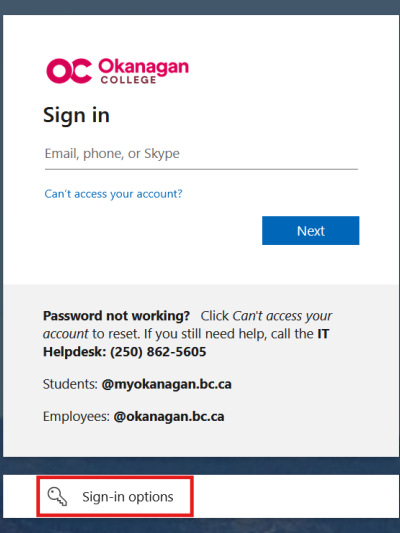
Instead, go to the usual myOkanagan login page and select “Sign-in options” near the bottom of the screen.
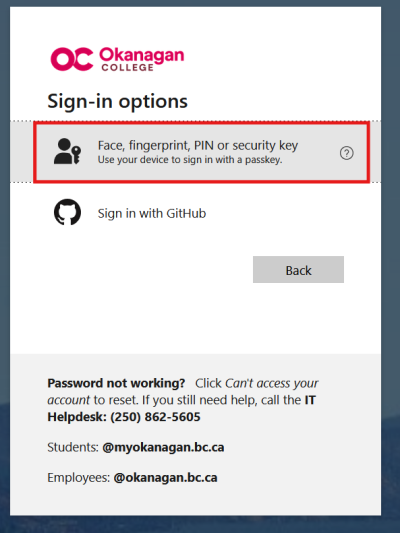
From there, choose “Face, fingerprint, PIN, or security key.”
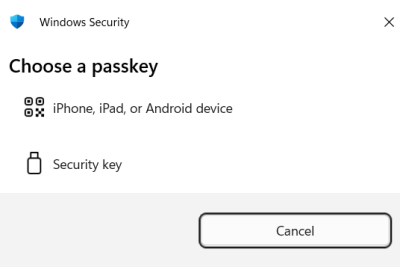
Next, select the type of passkey you’ve set up:
- If you configured a passkey using the Microsoft Authenticator app, choose "iPhone, iPad, or Android device"
- If you’re using a FIDO2 security key (such as a YubiKey), select "Security key"
Microsoft Authenticator
If your passkey is set up in the Microsoft Authenticator app:
- A QR code will appear on your screen
(If you’re signing in on the same device where the passkey is already configured, you can skip directly to step 3.) - Scan the QR code using your phone’s camera or the QR code scanner within the Authenticator app
- Confirm your identity using your device’s biometrics (fingerprint or face recognition) or your device PIN
Security Key
If you’re using a physical security key:
- Insert or tap your security key when prompted
- Enter the PIN associated with the key
Once completed, you’ll be signed in. No password required.
Additional Support
If you require assistance, please contact the IT Services Help Desk or visit the Microsoft support article on passkeys for more information.
Passkey Q&A
Below are key reasons why passkeys provide a more secure and user-friendly alternative to traditional passwords combined with MFA.
- No passwords to steal or reuse:
With password + MFA, attackers can still obtain your password through phishing, data breaches, or reuse across sites. Passkeys remove passwords entirely, so there’s nothing for attackers to steal. - Phishing-resistant by design:
Passkeys only work on legitimate websites/services and cannot be tricked into being used on fake login pages. In contrast, attackers can still trick users into entering passwords or approving MFA prompts. - Tied to your device:
A passkey is securely stored on your device and can only be used after verifying your identity with a PIN, fingerprint, or face recognition. - No shared secrets:
Password systems rely on shared secrets (your password). Passkeys use cryptographic key pairs, meaning the secret key never leaves your device, reducing the risk of interception. - Stronger protection than MFA fatigue attacks:
MFA can still be bypassed through tactics like repeated push notifications (“MFA fatigue”) or social engineering. Passkeys require physical access to your device and biometric/PIN approval.
In short: Passkeys provide stronger, phishing-resistant security while being easier to use, which makes them more secure than passwords, even when combined with MFA.
Once you receive your new device, you’ll need to register it as a passkey using the same steps outlined above in the “Set Up Passwordless Authentication with a Passkey” section of this article.
After your new device is added as a passkey, make sure you remove your old device to keep your account secure and up-to-date.
If you no longer have access to your previous device and are unable to sign in to set up your new one, please contact the IT Help Desk for assistance with registering your new device as a passkey.
When you register your device as a passkey through the Microsoft Authenticator app, Okanagan College can only see the name, model, and operating system of your device. Okanagan College cannot see or access any personal data from your device.
If you left your passkey device at home and need access to your account, please contact the IT Services Help Desk for assistance.
Please notify us as soon as possible by emailing itsecurity@okanagan.bc.ca. We will take steps to secure your account and remove the passkey if needed.
If you’d like the added security of a passkey but prefer not to install another app on your device, you can purchase your own FIDO2 security key. These physical devices (such as a YubiKey) allow you to sign in securely without the need for any additional apps. Please note that FIDO2 keys must be obtained independently and are not provided by IT.
This can happen if the passkey is not properly registered or selected. Try:
- Clicking “Sign in another way” on the password screen and choosing the "Face, fingerprint, PIN or security key" option.
- Removing and re‑adding the passkey to your OC account
- Ensuring you are using the same device and account where the passkey was created
If you have tried all 3 options above and are still having difficulties signing in with the passkey, contact the IT Services Help Desk for assistance.
Yes, passkeys are considered a form of multi-factor authentication (MFA) since they combine two factors in a single, seamless step:
- Something you have → your device (phone, laptop, or security key)
- Something you are or know → your biometric (fingerprint/face) or device PIN
It may not. Changing your PIN or biometric sign-in can cause your Microsoft Authenticator passkey to become invalid on that device. If that happens, set up a new passkey and remove the old one in the Microsoft Authenticator app.
Yes. The Microsoft Authenticator app and FIDO2 security keys allow multiple passkeys for different accounts and services.
Your password will still exist as part of your account, but you won’t need to use it for most sign-ins once you’ve set up a passkey. At this time, you may still be prompted for your password when signing in on OC-managed devices, such as laptops or desktop computers.
Using a passkey still provides strong security benefits because the less often your password is used, the lower the risk of it being intercepted or compromised.
Although these options may seem similar, passkeys provide significantly stronger security than passwordless sign-in requests.
Passwordless sign-in requests use a push notification to approve a login. They’re convenient, but can be susceptible to phishing or accidental approval.
Passkeys use a secure cryptographic key stored on your device, making them phishing-resistant and more secure. They also streamline sign-in by skipping the need to enter a username.