Tired of entering a long username and password every time you sign in to your OC account on a new device or web browser? If you answered yes, then we've got some great news for you. Okanagan College now supports (and strongly recommends) passwordless authentication using passkeys for all students and staff members.
Passkeys provide a more secure, phishing-resistant alternative to traditional passwords, reducing the risk of account compromise while delivering a faster and more seamless sign-in experience.
What is a Passkey?
A passkey is a secure digital credential that replaces your password. Instead of entering a password, you sign in using a trusted device, such as your smartphone, personal computer, or a FIDO2 key. This is then combined with a secure unlock method like a fingerprint, facial recognition, or device PIN.
Passkeys are built on strong cryptographic standards and are designed to:
- Work only with legitimate websites and services
- Prevent phishing attacks by eliminating password entry
- Keep your credentials securely stored on your device
Benefits of Using Passkeys
- Improved Security
Passkeys eliminate weak or reused passwords and provide strong protection against phishing and credential theft. - Simplified Sign-In Experience
No passwords to remember, reset, or manage. - Faster Access
Sign in quickly using your device’s built-in authentication methods. - Reduced Risk of Account Compromise
Passkeys are unique to each service and cannot be reused across sites.
Current Supported Passkey Methods at Okanagan College
You can use the following options to enable passwordless authentication with passkeys:
- Microsoft Authenticator App
Enables you to securely approve sign-ins using your mobile device and biometric authentication. To use passkeys with the app, your device must be running iOS 17 or Android 14, or a later version. - FIDO2 Security Key
A physical hardware key (USB or NFC) that securely stores and uses passkeys for authentication. An example of a FIDO2 Security Key is a YubiKey.
Set Up Passwordless Authentication with a Passkey
Note: If you already use the Microsoft Authenticator app for MFA on your OC account, please see the next section of this article for a faster setup experience.
- Go to: https://aka.ms/mysecurityinfo
- Sign in using your Okanagan College credentials.
- Select Add sign-in method.
- Choose a passkey-enabled option such as Passkey in Microsoft Authenticator or Security Key.
- Follow the prompts to complete setup on your device.
- Set your new method as your default sign-in option.
Already Use the Microsoft Authenticator for Your OC Account?
Great! If you already use the Microsoft Authenticator app for multi-factor authentication (MFA), setting up a passkey is quick and simple.
- Open the Microsoft Authenticator app on your mobile device.
- Locate and select your OC account from the list of accounts.
- Within your account, tap the “Create a passkey” option.
- You’ll be prompted to sign in to your OC account. Complete the sign-in when asked.
- After signing in, you may be prompted to register your device. If prompted, select the option to register your device as a passkey for your account.
- Follow the rest of the on-screen prompts to complete the setup.
Once you're finished, your device will be registered as a passkey, and you’re all set!
What Does Logging In Using a Passkey Look Like?
When you sign in using a passkey, you no longer need to enter a username or password at any point in the login process.
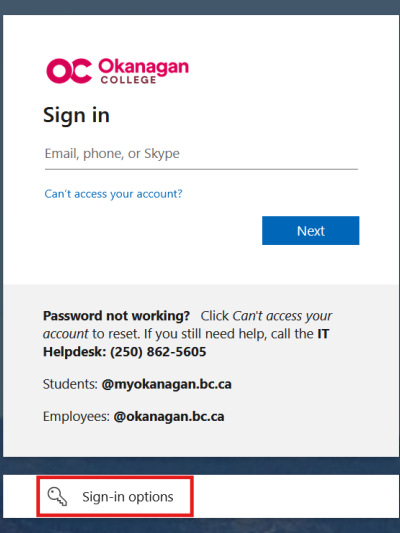
Instead, go to the usual myOkanagan login page and select “Sign-in options” near the bottom of the screen.
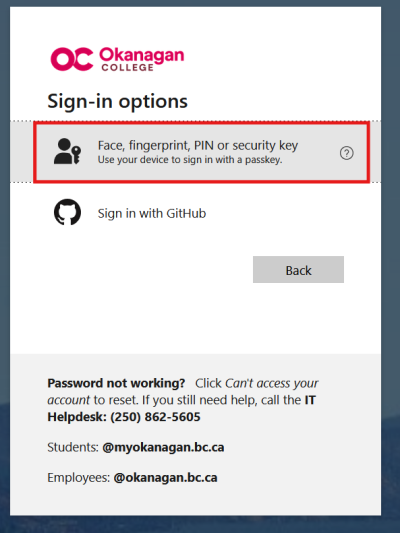
From there, choose “Face, fingerprint, PIN, or security key.”
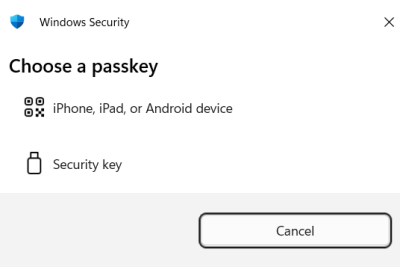
Next, select the type of passkey you’ve set up:
- If you configured a passkey using the Microsoft Authenticator app, choose "iPhone, iPad, or Android device"
- If you’re using a FIDO2 security key (such as a YubiKey), select "Security key"